Minimum Browser requirements
Axiell Go is a web-based Collections Management System for Archives, Libraries and Museums. It is designed to be accessed with a web browser on a tablet, laptop, PC or Mac. The following browsers and versions are supported:
|
Supported browsers |
Versions |
|---|---|
|
Chrome |
48.0.2564 onwards |
|
Firefox |
50 onwards |
|
Microsoft Edge |
27.11099 onwards |
|
Safari |
Safari 10 onwards (Mac) |
We recommend using the most current version of your chosen browser.
Release notes for Axiell Go include:
- Technical requirements
- New Features
- Improvements
- Issues Resolved
Axiell Go 10
Release Date: 18 December 2025
Requirements
- For Windows 10 or 11
- Texpress 11.0.015 or later
- TexAPI 6.1.002 or later
- Perl 5.12.0 or later
Note: Axiell Go is available as part of an EMu installation or upgrade to EMu 9 or later: it is no longer installed or upgraded alongside versions of EMu older than EMu 9.0. Full details about minimum system requirements are provided with the EMu installation and upgrade notes available here.
Axiell EMu Ideas Portal
The Axiell EMu Ideas Portal allows you to view and submit ideas to a pool of ideas for future Sapphire development, vote for ideas, or ask us development questions:
New Features
More like EMu
Axiell Go is a browser-based interface to the EMu Collections Management System (CMS), designed to offer simplified access for users performing core tasks such as inserting, editing, displaying, and deleting records. In its earlier form, Axiell Go featured fairly basic task-driven workflows through tailored Record Views, supporting some collections management activities. With Version 10, Axiell Go provides a more familiar experience for EMu users, essentially offering access to all data (subject to permissions), though not the full range of functionality available in the EMu desktop client. Key enhancements with Version 10 include:
- A Command Centre within the Dashboard for module navigation.
- A form-based search interface that enables comprehensive searches across all fields in a module.
- Replacement of Tasks, which were designed for record creation, with a more intuitive Create New option.
- Removal of the simplified Record Views, aligning Go records more closely with full EMu records.
While Axiell Go is not intended to be a replacement for EMu, and some complex collection management tasks and certain tasks commonly performed by Power Users will continue to be performed in the desktop application, it does provide accessible and intuitive access to your EMu data, and the functionality sufficient for everyday collections management.
Find Field tool
A Find Field tool, similar to the Find a field utility in EMu, is now available when searching a module and adding a new record. To access the tool, select a module button in the Command Centre, opening a Search workspace; the Find Field button is found in the Workspace toolbar:

It is also available when adding a new record; click the Create New button in the Search workspace toolbar to open an Insert workspace:

Alternatively, use the keyboard shortcut, Ctrl+F.
Full details here.
Axiell Go and OpenID
OpenID Connect (OIDC) is an open standard and decentralized authentication protocol that allows users to log into multiple websites using a single set of credentials. Instead of creating a new username and password for every site, users can authenticate using an identity provider such as Google or Microsoft. It has been available for use in EMu since EMu 6.5; it is now possible to log in to Axiell Go using OIDC.
When OIDC authentication has been setup for Axiell Go, the Login box will appear similar to:
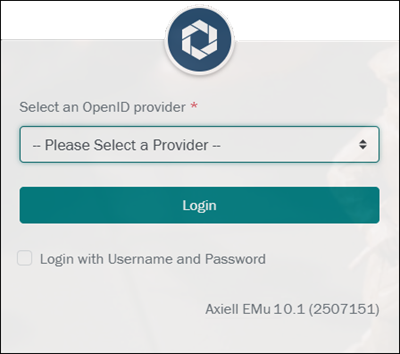
If only one OpenID provider is available, it will be preselected in the form; if more than one provider is available, select a provider from the drop list:
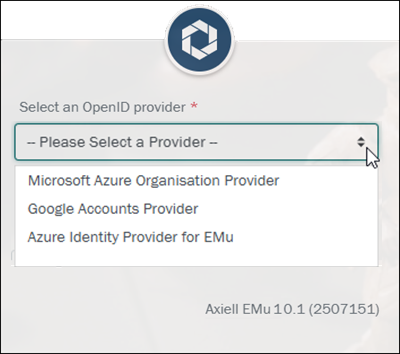
and then select the Login button.
The page will redirect to the selected provider's login page (Google in this example):
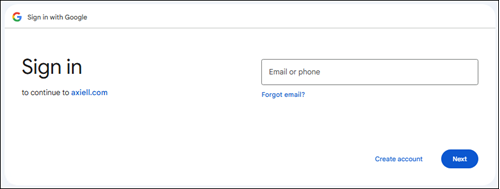
Provide the required credentials to be authenticated and returned to the Axiell Go dashboard.
To log into Axiell Go using your EMu username and password instead of OIDC, select the Login with Username and Password checkbox:
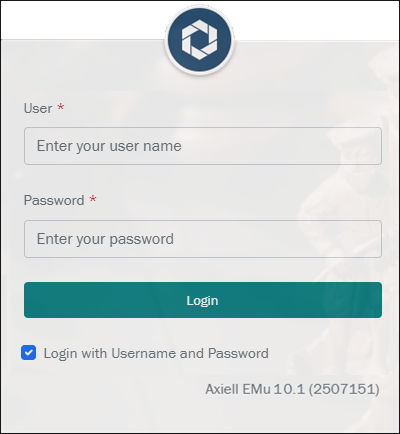
Tip: A login form requiring your EMu username and password will display if OIDC is not setup for your implementation of Axiell Go.
Full details about logging into Axiell Go can be found here.
Note: System Administrators will find details about implementation and configuration of OIDC for Axiell Go here.
Accessibility: keyboard shortcuts
The following keyboard shortcuts are available in Axiell Go to support accessibility:
|
Keyboard Shortcut |
Action |
Details |
|---|---|---|
|
|
|
If only the Dashboard is open, press the In this example:
press
Press If the Dashboard is currently displaying alongside other workspaces:
press
press it again to give focus to the
and so on. When a workspace has focus, press ENTER to display that workspace. If the If you keep pressing |
|
|
When a Search workspace is displaying, use the |
|
|
CTRL+ENTER |
When a Search workspace is displaying, use the CTRL+ENTER shortcut to run your search. |
|
|
|
When a Search or Insert workspace is displaying, use the |
|
|
|
When a record is open in Details View, use the |
|
|
|
When changes have been made to a record, use the |
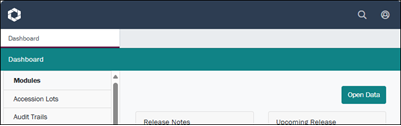
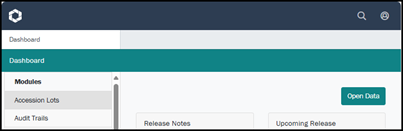
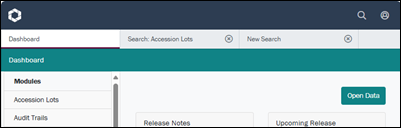
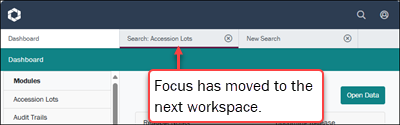

Table shortcuts
A table can be simple and have only one column (one value per row), or it can have multiple columns (multiple values per row).
Simple table
A good example of a single column table is Other Names: (Person Details) in the Parties module (on the Person Tab):
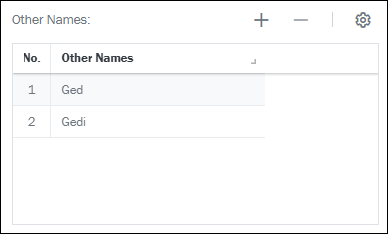
The following shortcuts are available in a single column table
|
Keyboard Shortcut |
Action |
Details |
|---|---|---|
|
|
Add row Delete row |
When editing a simple table such as Other Names in the Parties module, use the |
Multi-column table
A good example of a multi-column table is Associated With in the Parties module (on the Associations tab). Data in a multi-column table is added and edited in a popup window (click  or click a row in the table to display the popup):
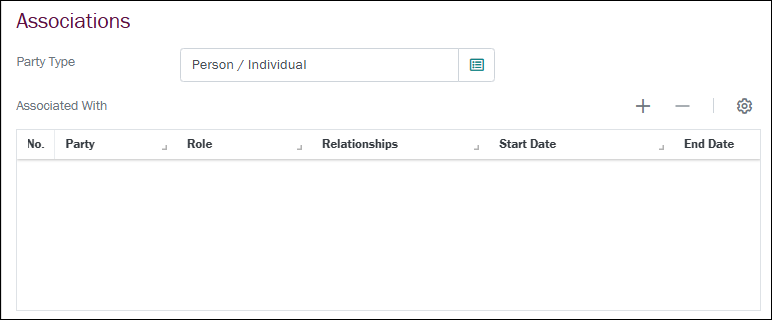
The popup window will appear similar to:
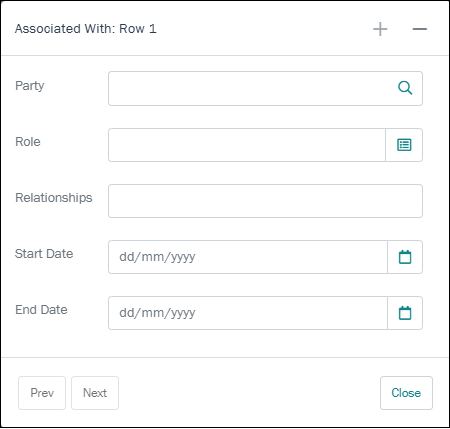
The following shortcuts are available in the popup window:
|
Keyboard Shortcut |
Action |
Details |
|---|---|---|
|
|
Add row |
When editing a multi-column table such as Tasks on the Tasks tab use the When details are added to the fields in the table popup, use the |
|
|
Remove row |
When the table popup is displaying, use the |
|
|
Previous row |
When the table popup is displaying, use the |
|
|
Next row |
When the table popup is displaying, use the |
Tip: Details about editing data in tables can be found here.
Change background image of Login screen
It is possible to change the background image of Axiell Go's Login page by replacing the default image file (login-background.jpg) located in:
client\go\ui\images\
where client is the name or acronym used for your institution's implementation, e.g.: ushmm\go\ui\images\
It is important that your image is optimized for the web and follows these guidelines:
- The replacement image must use the same name (
login-background) and format (jpg) as the default file:login-background.jpg - The file size should be between 100 and 500KB to optimize page load performance.
- The aspect ratio should be 3:2 (width:height) with recommended dimensions of 1600px by 1067px.
Improvements
The following improvement has been made to Axiell Go with the version 10 release:
- List View previously only displayed Summary Data; it now also includes the IRN A unique identifier automatically assigned when a record is created..
Issues resolved
- It was possible for the search spinner to not stop and display matching records. The spinner stops and the matching records are displayed.
- At times the Login form would not display if OpenId was not configured. The Login form displays with or without OpenId configured.
- Client forms with multiple sets of radio buttons in a group might not display correctly in Go. All button correctly display in Go.
- Reverse reference tabs could be edited. Reverse reference tabs now display as read-only.
- Reverse reference tabs might not display all of the matching records. Reverse reference tabs now display all of the matching records.
- Some editable fields associated with a grid in the client could show as read-only in Go. The fields are now editable.
- Media could not be added to a Multimedia record that did not have media. Media can now be added.
- Records in List View were not reloaded after a record was edited and saved. The records are now reloaded.
- The Upload Media button only allowed a single media to be selected. Multiple media can now be uploaded at once.
- When adjusting the width of List / Grid Views the column would automatically sort. The width is now only adjusted.
Axiell Go 9.1
Release Date: 24 July 2024
Requirements
Note: Axiell Go is available as part of an EMu installation or upgrade to EMu 9 or later: it is no longer installed or upgraded alongside versions of EMu older than EMu 9.0. Full details about minimum system requirements are provided with the EMu installation and upgrade notes available here.
Axiell EMu Ideas Portal
The Axiell EMu Ideas Portal allows you to view and submit ideas to a pool of ideas for future Sapphire development, vote for ideas, or ask us development questions:
New Features
Option to hide / show session and record data on the Dashboard
The Dashboard, which is the default workspace when you log in to Axiell Go, includes four information panels: at the top are panels showing statistics about the day's sessions (user logins) and records (added, edited), below which are panels displaying Release Notes and news about Upcoming releases. Previously, all four panels displayed at all times. A button has been added to the Dashboard to hide / show the session and record data. Here we see the Dashboard with the two statistics panels hidden:
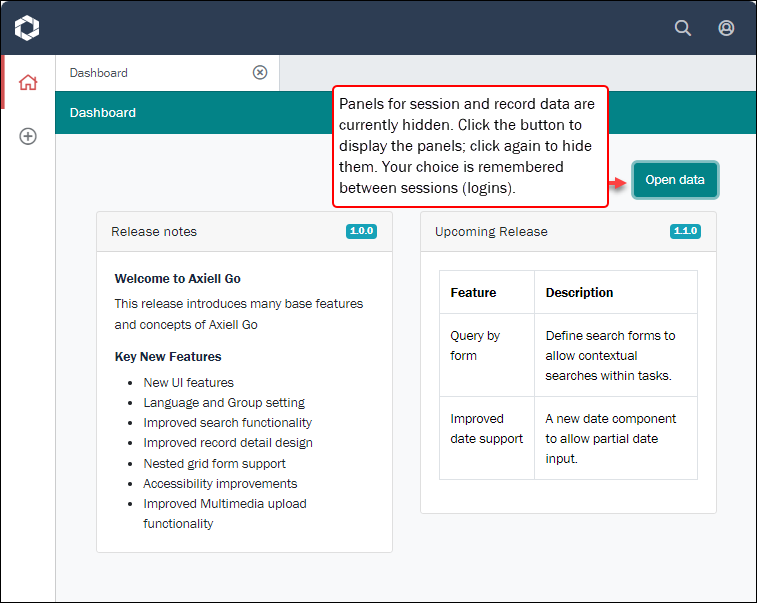
Your choice to show / hide the panels is remembered by Axiell Go and applied whenever you log in.
New Account options: account information, change group and language
The Account drop list, which is accessed from the top toolbar, now displays the name of the logged in user and the group they are currently logged into (the Admin group in the example below). Two options have also been added: Change Group and Change Language:
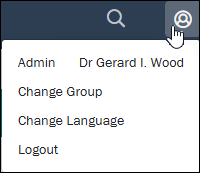
If you are a member of more than one EMu user group, you will be logged in to one of those groups by default (the first group listed in your Group Registry entry). The Change Group option allows you to switch to another group.
Select Change Group to display a dialogue box with a drop list of groups available to you. Select a group from the drop list and click Submit:
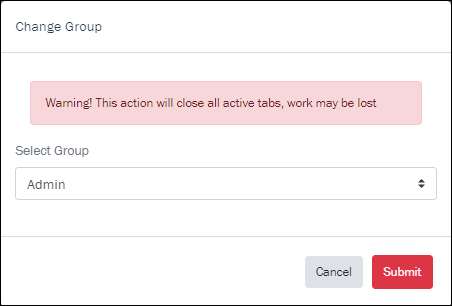
Note: Before changing groups, be sure that any changes you have made have been saved otherwise they will be lost when the switch occurs!
Select Change Language to display a dialogue box with the current language options:
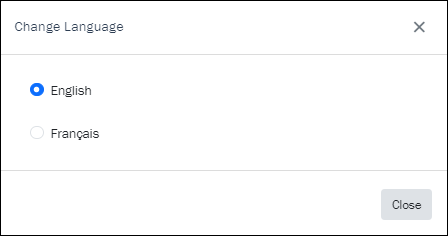
Select a radio button to switch the language of the user interface from English to French and vice versa.
Note: Before changing languages, be sure that any changes you have made have been saved otherwise they will be lost when the switch occurs!
Search improvements: New search button
A New search button has been added to the Axiell Go search form, bringing search functionality in Axiell Go inline with EMu. As the label implies, the button opens your search in a new search workspace.
Selecting the Search icon  in the top toolbar opens the search form in a New search workspace:
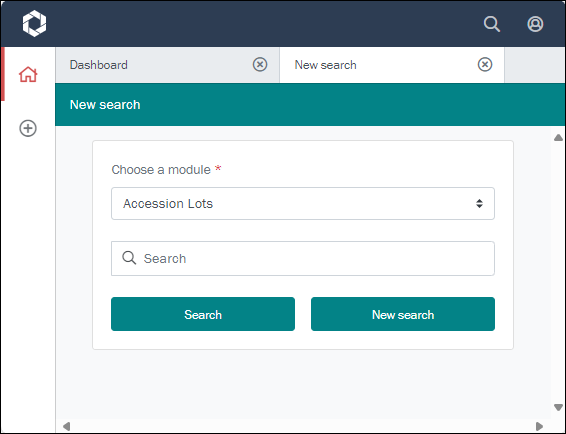
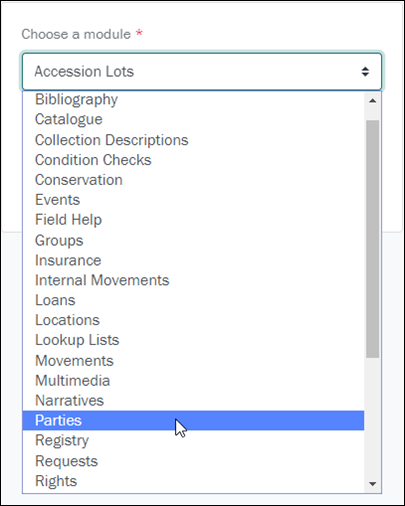
enter your search term in the Search field:
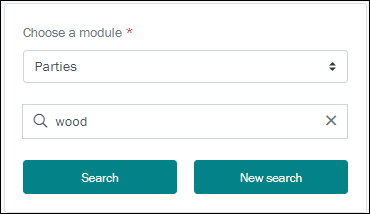
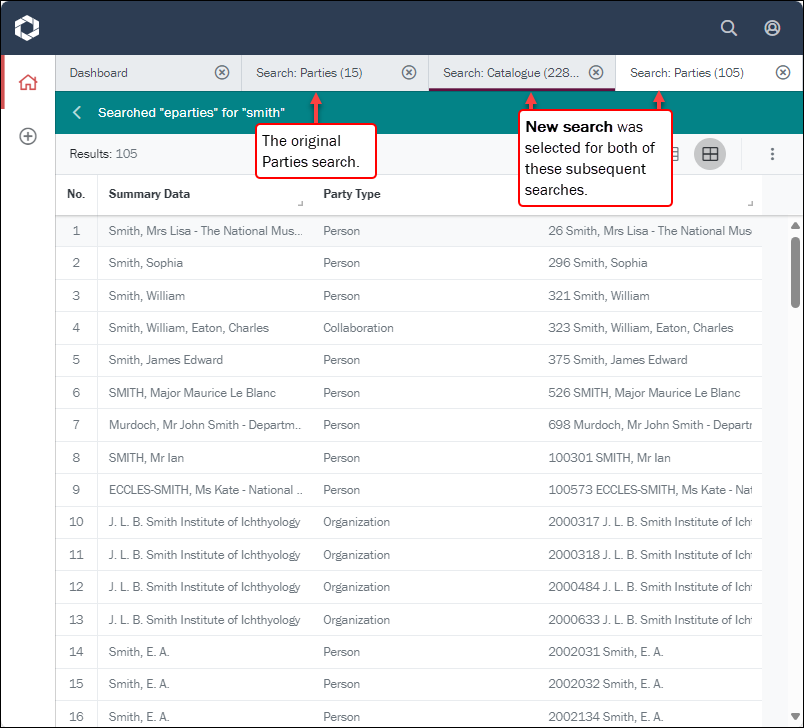
and click Search or New search (it doesn't matter which when running your first search). Search results are listed in the current workspace (now relabelled to include the name of the module you searched). From here you have the option to return to the previous search (described here) or to run a new search:
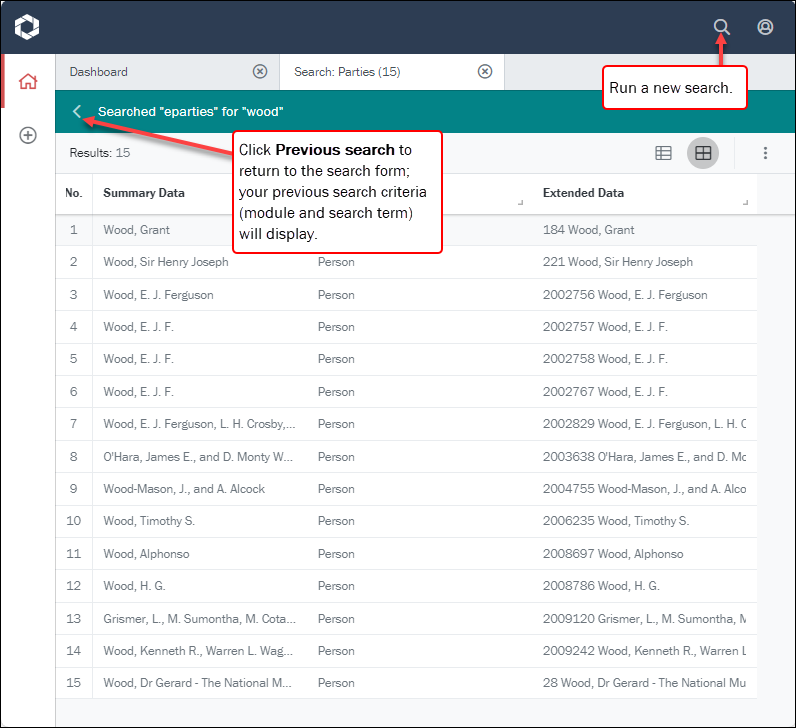
If you run a new search by clicking in the top toolbar, the search form displays in a new workspace.
The Search button behaves as it did previously:
- If you select the same module as a previous search, Parties in this example, the search workspace already open for that module is re-used (the previous search results are replaced with the new search results):
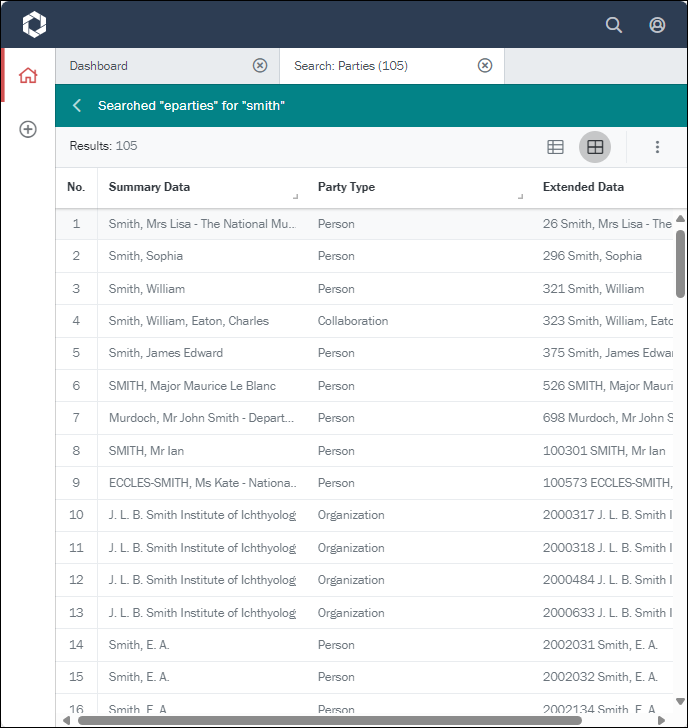
- If you select a different module, your search results are presented in a new workspace:
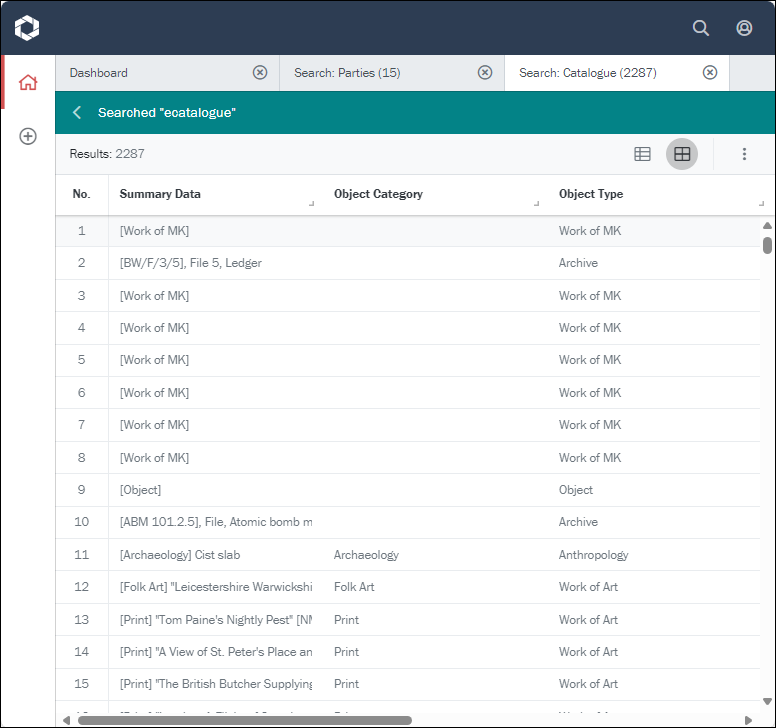
When you click New Search, a new workspace always opens for your search results, regardless of the module selected:
Active Record Section retained as you navigate between records
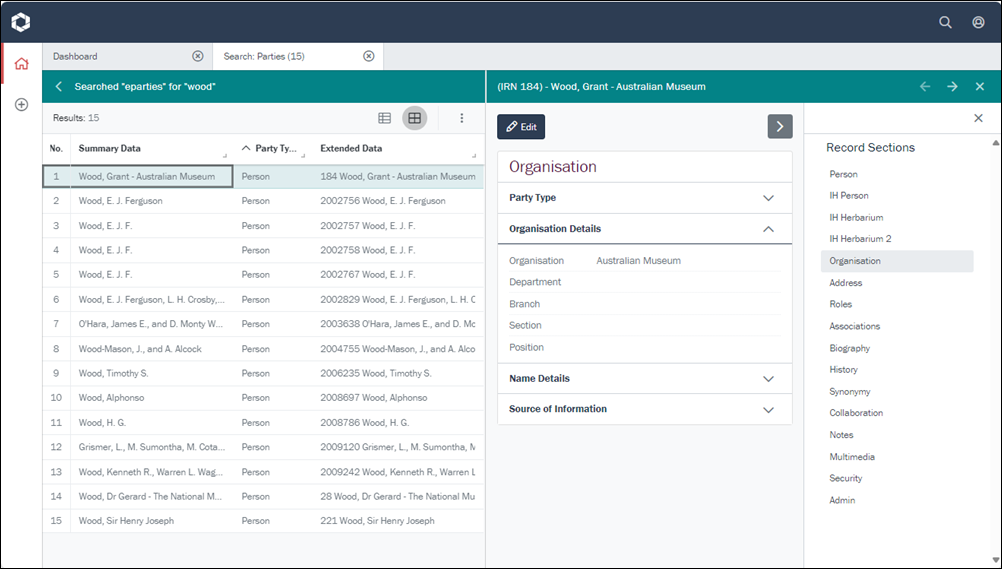
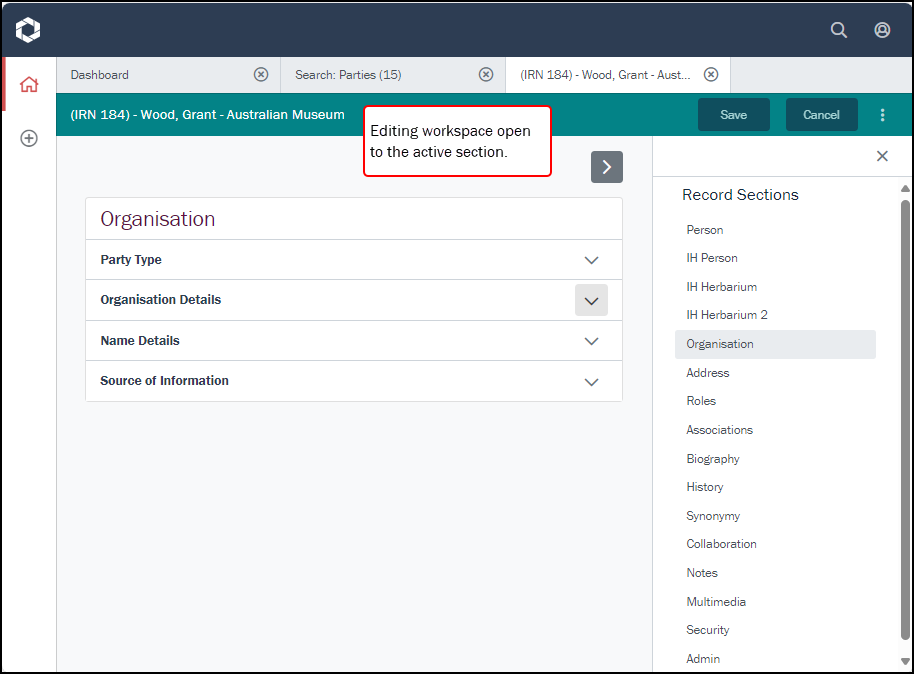
When viewing a record in Details View an open Record Section now retains focus as you navigate between records. If you then edit a record, the active section automatically displays in the Edit workspace.
What does this mean in practice?
Following a search, you select a record in order to view its details:
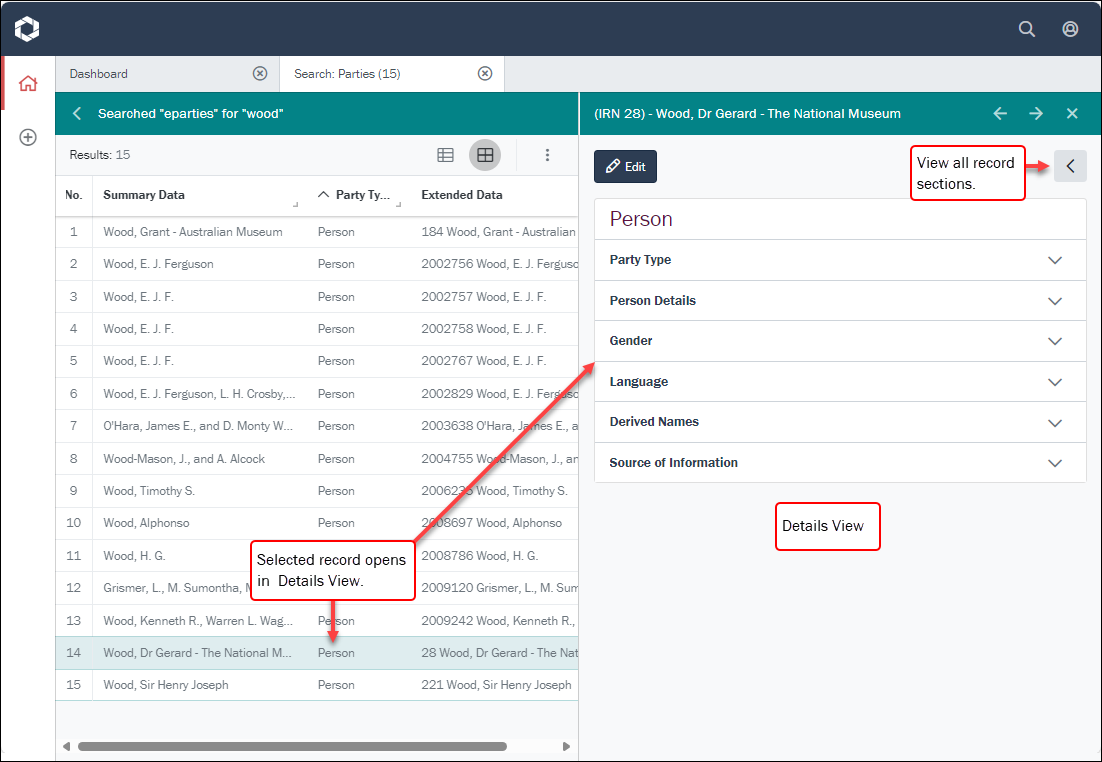
You click the View record sections  icon to list all available record sections and (1) select a record section, displaying the field groups in that section; and (2) you open one of the field groups to display its data:
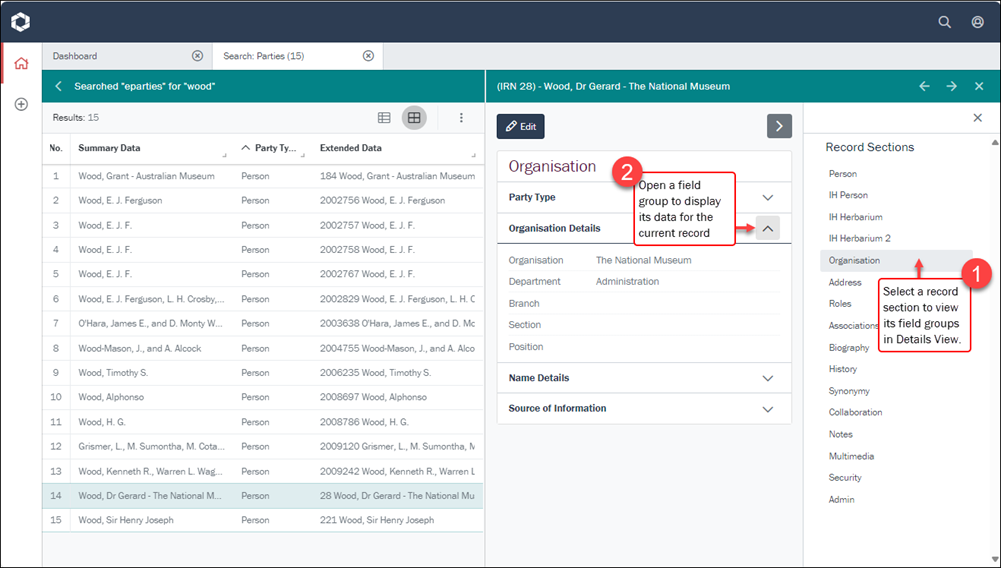
Now, as you select different records in the Search workspace, the active section (Organisation in the example above) remains open in Details View, allowing you more easily to compare data as you move from one record to another:
If you choose to edit a record, the record will open in the Edit workspace with the active section ready for editing:
Unsaved changes notification
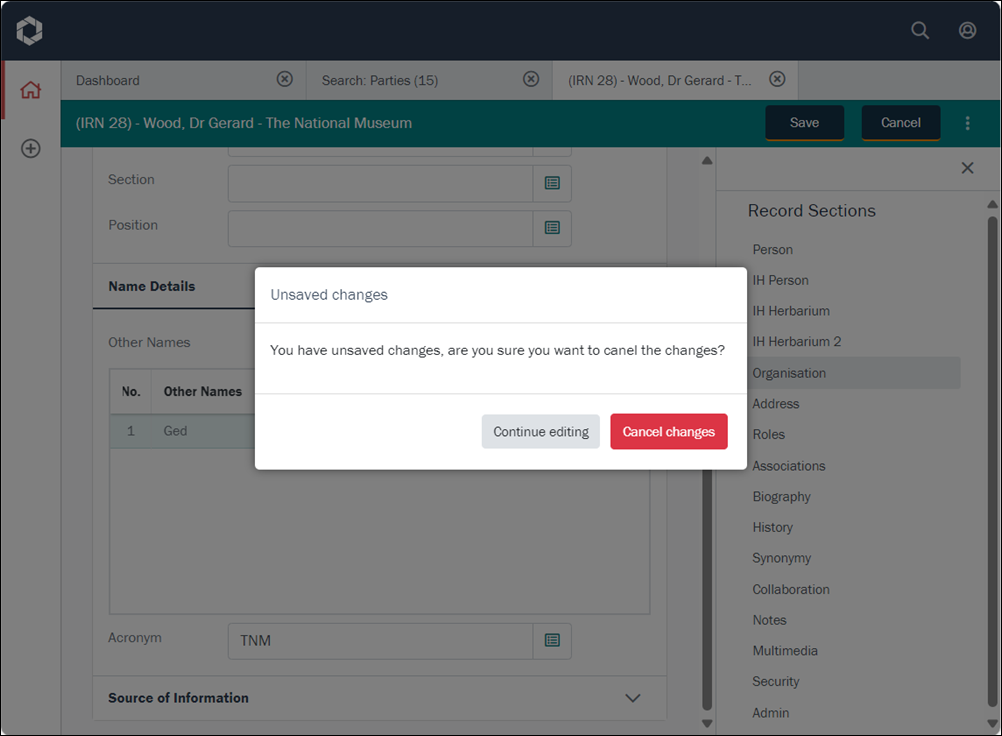
If you make changes to a record and select the Cancel button, you are now alerted that you have unsaved changes. You then have the option to continue editing the record (and saving the changes) or cancelling the changes (the changes will be lost):
Resizable panels
When a search is run, the search results are listed in a search workspace; if you select one of the listed records, it opens in Details View in a second panel within the search workspace:
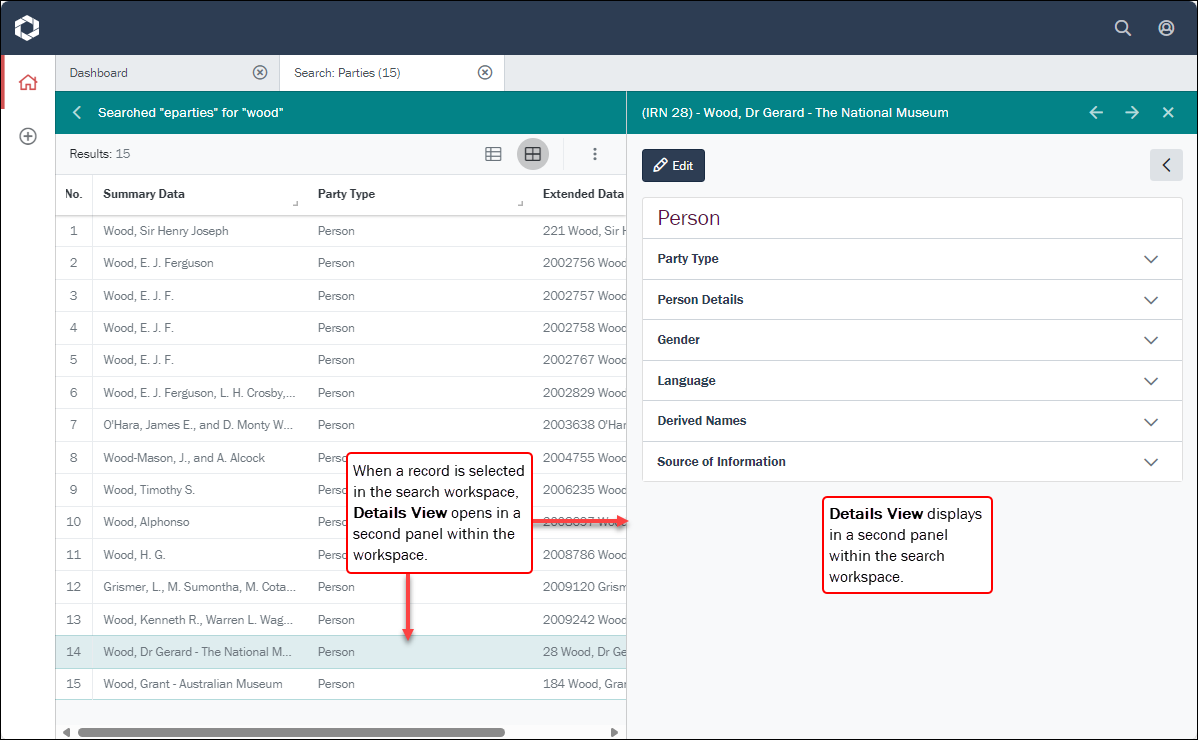
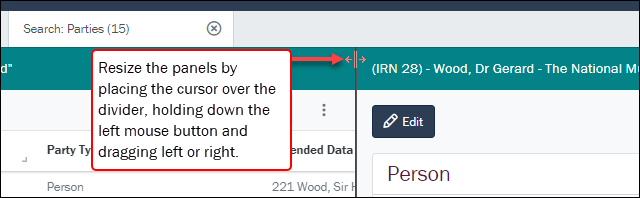
The two panels can be resized by placing the cursor over the panel divider, holding down the left mouse button and dragging left or right:
A record can only be edited in one workspace
When a search is run, the search results are listed in a search workspace; if you select one of the listed records, it opens in Details View in a second panel within the search workspace:
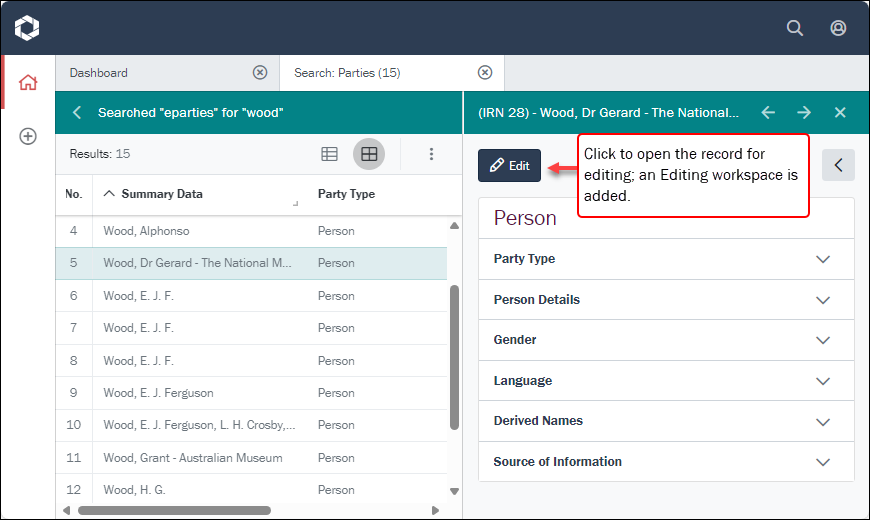
When the Edit button is clicked, the record opens in an editing workspace:
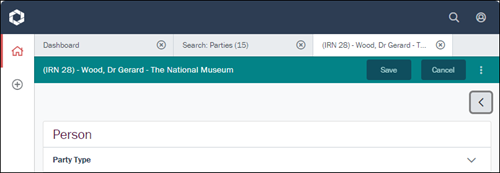
Now, if we were to return to the search workspace and click the Edit button for a record that is already open in an editing workspace, one of two things will happen:
- If the record has not yet been edited, the editing workspace for that record will get focus.
-
If the record has been edited and your changes are unsaved, a message will display:
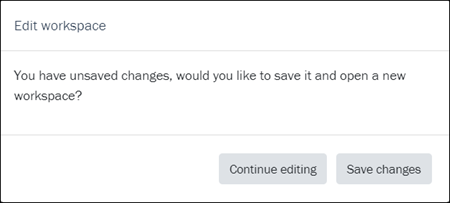
- Continue editing: the editing workspace for that record will get focus with your changes unsaved.
-OR-
- Save changes: your changes are saved and the editing workspace for that record will get focus.
This ensures that a record can only be open and edited in a single location.
- Continue editing: the editing workspace for that record will get focus with your changes unsaved.
Copy linkWhen Axiell Go is deployed using HTTPS (all data transmitted is encrypted) it is possible to copy the link to a record, which can then be shared and pasted into a browser to open the record.
The Copy link option is available when editing a record and it is accessed from the ellipsis menu:
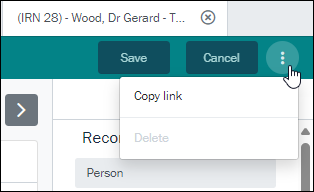
Note: This option is disabled when Axiell Go is deployed using HTTP.
The Delete option is not currently enabled but will become available for members of group Admin in a forthcoming release.
Details...
Update Add, Edit and Save records
Multimedia improvements
Improvements have been made to working with multimedia:
- Download media
It is now possible to download media when viewing record details (in Details View); previously, it was only possible to download media when editing a record. When viewing record details, open the Multimedia record section and click the Download
 icon to download a media file to your device: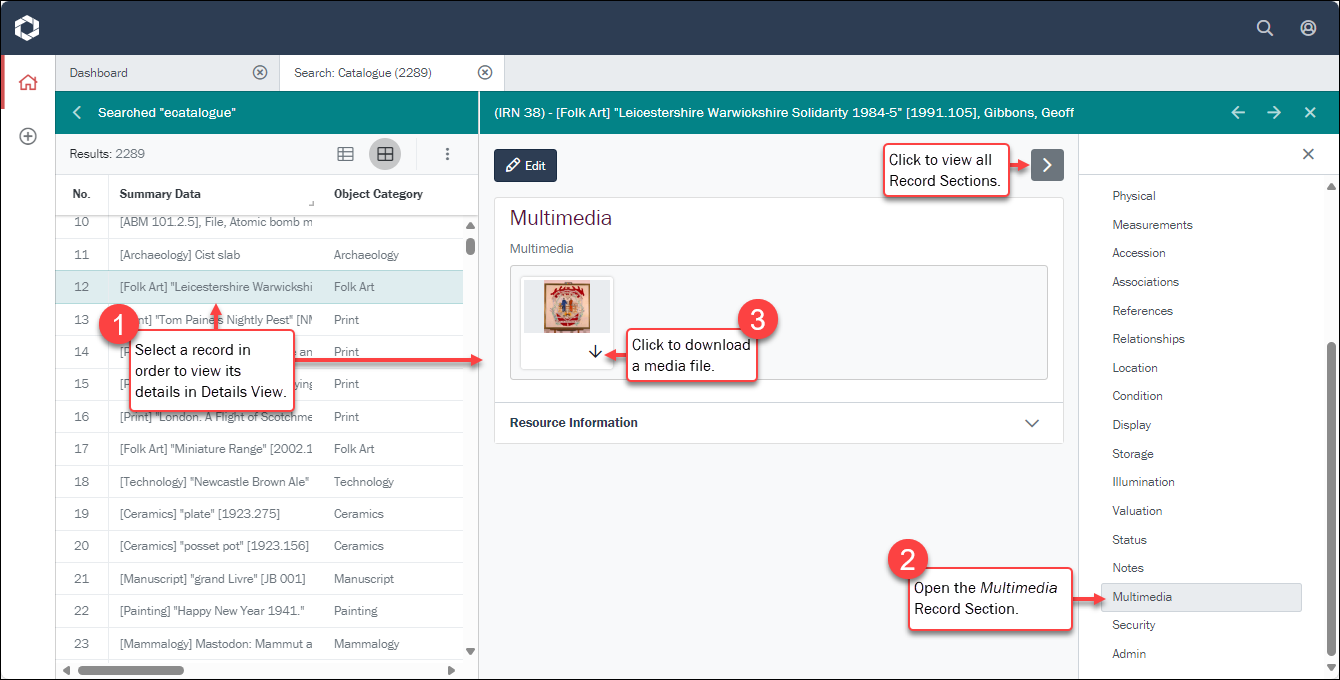
- Multimedia editing
When editing details in the Multimedia Record Section, there are three options for uploading and attaching media to the current record:
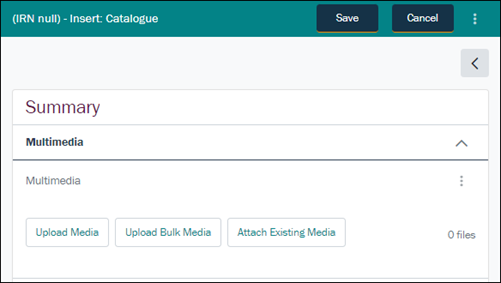
The Upload Media option is used to upload a single media file. The Upload New Media window that displays when this option is selected now provides fields for adding a title, creators and description. Adding a title is mandatory when uploading a single media file as it greatly facilitates searching for media in the Multimedia module:
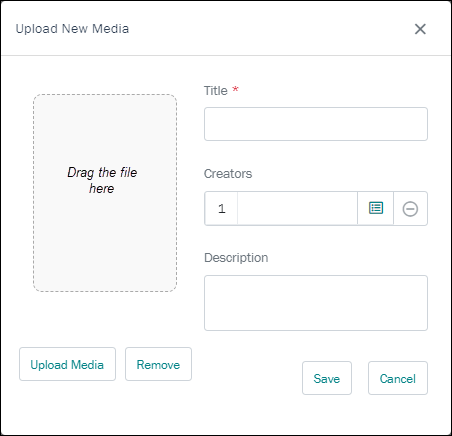
Details:
- Upload a media file by dragging it from your device to the area indicated on the Upload New Media window, or click Upload Media to locate the file on your device.
- Add a title, link to one or more Parties records for creator(s) of the media, and provide a description.
Note: It is not possible to save new media without uploading a file AND providing a title.
Grid and Nested grid improvements
Improvements have been made to tables (grids and nested grids) comprising more than two columns, making it simpler and more intuitive to work with them.
A good example of a multi-column table is Associated With in the Parties module (in the Associations Record Section). Each row holds details about an associated party, including a link (attachment) to a Parties record, the role of the linked party, as well as start and end dates for the association, a total of four fields:
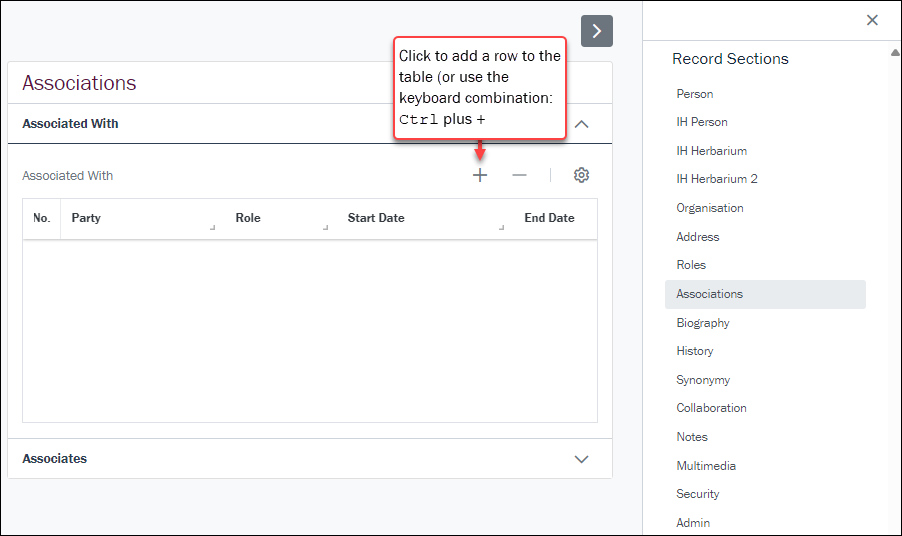
To add a row to the table, click the Add row icon (or use the keyboard combination, Ctrl plus +). A popup window displays:
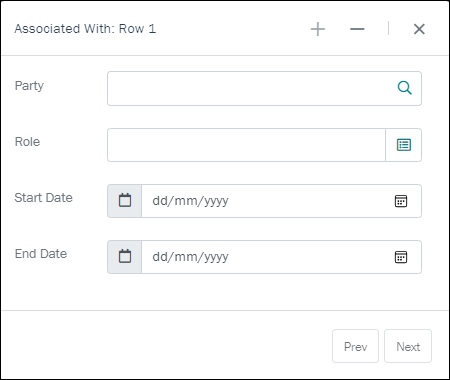
Add values to the fields. In this case:
- Party is an Attachment field (details here).
- Role is a Lookup List (details here).
- The other fields are Date fields (details here).
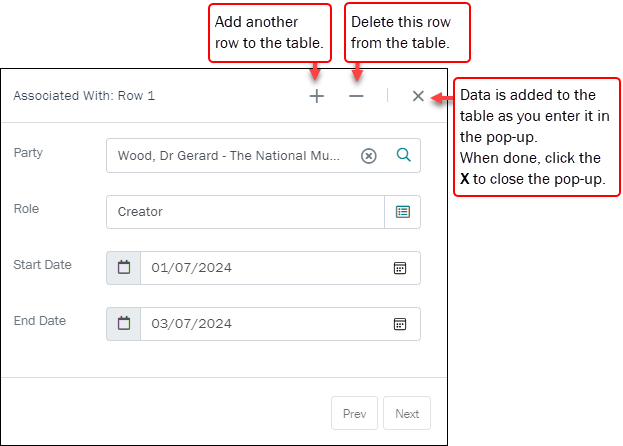
When you have added more than one row to the table, the Prev and Next buttons are enabled, allowing you to move back and forth between rows.
Options:
- To add another row to the table, click the Add row icon (or use the keyboard combination, Ctrl plus
+). - If you want to remove a row, click the Delete row
 icon (or use the keyboard combination, Ctrl plus
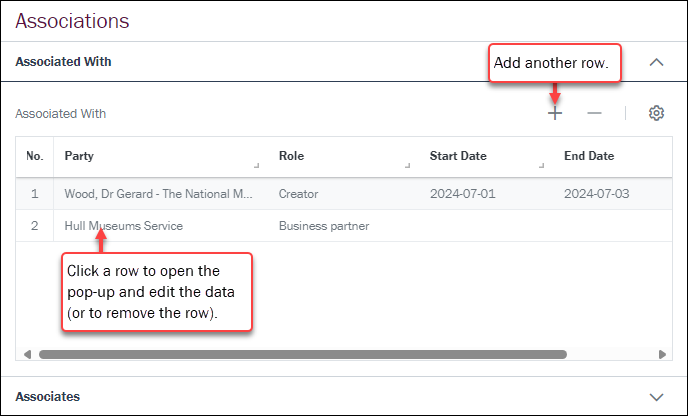
 -). - As you add values (and rows) to the popup window, the table is updated. Click the X in the top right to close the popup when you're done and display the table:
In the Tasks Record Section, Assigned to is a table of attachments (to Parties records) nested within another table:
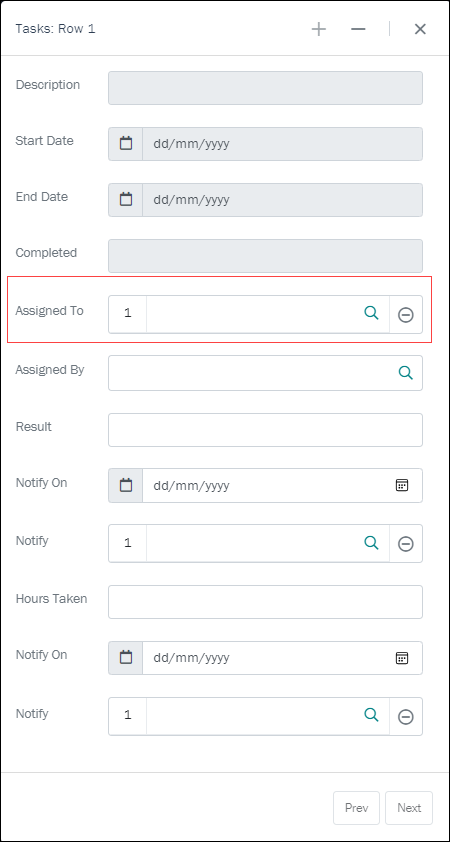
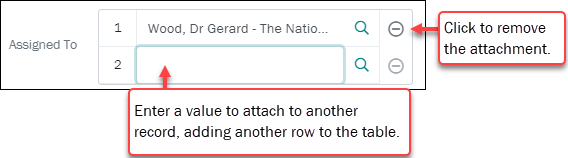
To attach to a record, start entering a value and press Tab; if a single record matches, the field will auto-complete, otherwise a popup will display in which you select the required value. Here we see how to remove a row from a nested table and how to add another row:
Lookup List improvements
Also known as a Pick List or Authority List, a Lookup List is a list of the values that have either been used or are suggested for use in a field. Rather than keying a value into the field, it is possible to pick a value from the Lookup List; the selected value will populate the field. Benefits of selecting a value from a Lookup List rather than keying a value directly into a field include:
- Less typing.
- Consistent spelling of values entered in fields.
- Use of the correct (approved) terminology when running a search or editing a record, e.g.
Sales PersonnotSalesman.
Lookup field functionality has been aligned with Attachment field functionality (Attachment fields are used to link the current record to another record in the same or another module):
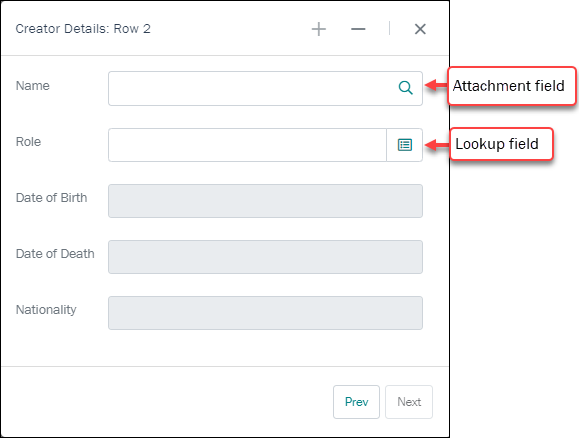
When a value is entered in either type of field and we click the field icon or press the Enter key, the field is auto-completed if only one result matches the value entered. For example:
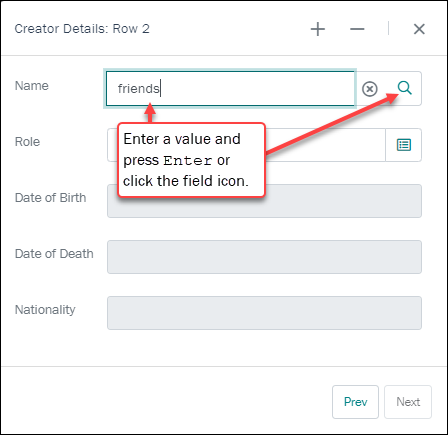
In this case, there is only one matching value and the field is auto-completed:
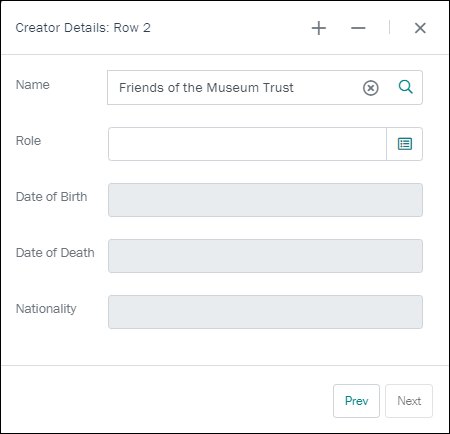
If more than one value matches:
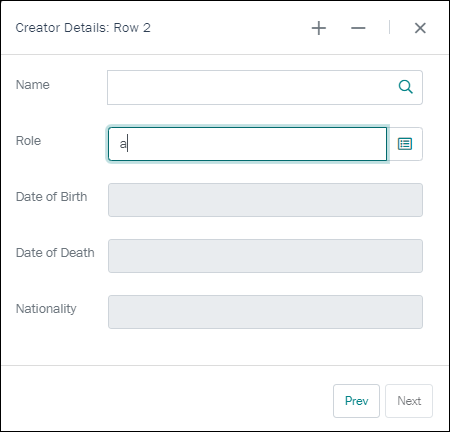
a popup displays with a list filtered to potential matches:
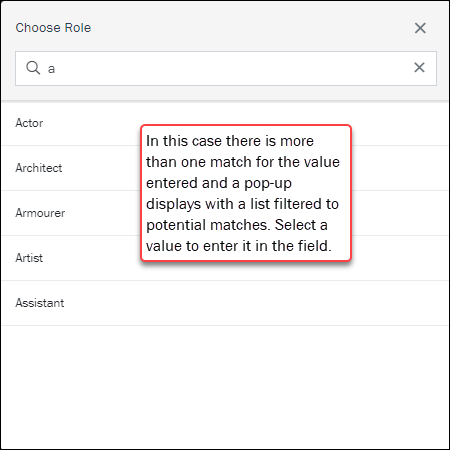
The only difference between the behaviour of these two types of field is that a Lookup field can be configured to hold a value that is not in the Lookup List; as such, if you enter a value that is not in the list and move to another field, a popup will not display and the value you entered will remain in the field.
Improvements
The following improvements have been made to Axiell Go with the 9.1 release:
- All records and grid fields (in tables) are indexed.
- Various improvements to the User Interface to allow more items to display in one window.
- Refresh warning: if a user attempts to refresh the page (using the
F5keyboard shortcut for instance) and changes have not been saved, a warning displays.
Axiell Go 1.0 (relabelled Go 9.0)
Release Date: 29 April 2019
Go 1.0 relabelled Go 9.0
May 2023 saw the release of EMu version 9.0, the first version to bundle our Collections Management System with a suite of tools that were previously add-ons licensed separately to EMu. The bundle consists of:
- Go: a web based client interface to EMu.
- IMu: a web browser search facility used to explore the collection.
- RestAPI: a REST API server providing access to the collection.
- Sapphire: a web based rapid data entry tool supporting simple task definitions.
- Server: the traditional EMu back-end server.
In order to align Go with EMu going forward, Go 1.0 was relabelled Go 9.0; it is the official version of Go bundled with EMu 9.0 and its features are described in this documentation.
Version 1.0.0 of Axiell Go introduces many base features, including:
- Record create, read, update
- Simple record search and record preview
- Multiple record views
- Basic tasks
- Multi-tasking via workspaces
- Session and record statistics widgets
- Search results grid sorting